Mastering Final Cut Pro: What You Need to Know About the Command-E Keyboard Shortcut
Keyboard shortcut: CommandE
As editors, we know that time is precious, and efficiency is key—especially when working on a tight deadline or juggling multiple projects. One of the most useful shortcuts in Final Cut Pro that can speed up your workflow is Command-E. In this post, we’ll break down what this shortcut does, how editors use it, and how you can leverage it to streamline your editing process.
What Does Command-E Do in Final Cut Pro?
In Final Cut Pro, Command-E is the shortcut for exporting a project or clip to the default share destination. Essentially, when you press Command-E, Final Cut Pro exports your project using the default share settings that you have configured in the app. This could include a preset output format (like QuickTime, MP4, or ProRes), a specific resolution, and a chosen storage destination (whether it’s your local drive or cloud storage).
But what does this really mean in practical terms?
- Quick Export: You can quickly export a project without needing to manually adjust export settings every time.
- Consistency: It helps maintain consistent export quality and formats, especially when working with teams or clients.
- Simplicity: Instead of navigating through several menus, Command-E lets you export with a single keystroke.
Let’s dive into how editors can make the most of this feature.
How Editors Use Command-E in Their Workflow
For editors working on a project, Command-E can be a game changer. Here are a few scenarios where this keyboard shortcut comes in handy:
1. Quick Exports for Review or Delivery
As an editor, you’re often working on multiple versions of a project or sending out rough cuts for client feedback. Command-E allows you to export content quickly and easily, without having to go through the full export settings each time. Whether you’re exporting a rough cut, a selected scene, or a final edit, Command-E saves you time and streamlines the process.
For example, if you’re working on a commercial and need to send the first draft to a client, Command-E opens the export window for your default destination, so you can confirm the settings, click Next and save.
2. Maintaining Consistency Across Deliverables
When working in a team, maintaining consistent export settings is crucial. If you’ve set up a default export preset (say, exporting in a specific format or resolution for broadcast or online platforms), pressing Command-E ensures that your export follows those settings every time. This consistency is especially useful when you’re part of a larger post-production pipeline or when delivering projects to clients who expect a certain output quality.
Let’s say you have an export preset configured for ProRes 422 HQ in 4K resolution for your client’s deliverables. With Command-E, you don’t need to worry about manually selecting the settings each time—you just hit the shortcut, confirm the settings and choose where to save.
3. Faster Workflow for Final Deliverables
When your project is nearing completion and it's time to deliver the final output, Command-E can be a quick way to export the project to its final destination. Whether it's for upload to a streaming service, archiving, or distribution to collaborators, this shortcut speeds up the final step of the editing process.
For example, after completing a YouTube video edit, you could make a destination with the right resolution and codec for your upload your default, so Command-E always starts with those settings. It’s an incredibly efficient way to wrap up a project.
How to Customize the Default Share Settings
To fully harness the power of Command-E, it’s important to set up your default export destination in Final Cut Pro. You can do this by going to File > Share and customizing your export presets.
Here’s how to configure it:
- Open your project in Final Cut Pro.
- Open Final Cut Pro's settings and click Destinations to see your share destinations.
- Select the destination that best fits your needs, such as Export File.
- Customize the settings, such as resolution, format, and destination (local storage, cloud storage, etc.).
- Control-click that destination and choose Make Default.
Once your default share destination is configured, Command-E will automatically apply these settings whenever you use the shortcut.
Why Command-E is Essential for Every Editor
For any editor looking to save time and maintain consistency, Command-E is an indispensable tool. By simplifying the export process, it allows you to focus on what really matters: the editing itself. Whether you’re working on a quick turnaround project, collaborating with a team, or preparing final deliverables, this shortcut can speed up your workflow, reduce errors, and help you deliver content faster.
So, the next time you’re working in Final Cut Pro, remember Command-E for a faster, smoother editing experience. It’s one small shortcut with a big impact!
Final Thoughts
Efficient editing is all about mastering your tools and workflows. The Command-E keyboard shortcut in Final Cut Pro is a simple yet powerful way to streamline your export process and get your projects out the door faster. With just a single keystroke, you can save valuable time and ensure consistency across all your export deliverables. If you haven’t yet incorporated this shortcut into your workflow, now’s the perfect time to give it a try!





Related tutorials
-
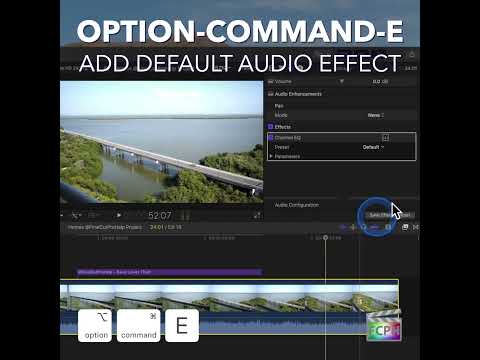
How to Speed Up Your Audio Editing Workflow in Final Cut Pro with the Option-Command-E Shortcut
If you're an editor working in Final Cut Pro , you know that audio is just as important as video when it comes to creating a polished, professional final…
-

How to Use the Control-Command-E Shortcut in Final Cut Pro to Adjust Exposure
Final Cut Pro is a powerful tool for video editors, offering a wide range of features for color grading, correction, and creative enhancement. One of the…
-

Final Cut Pro Shortcut | Command-Option-Delete | Delete Selection Only
If you’re an editor working in Final Cut Pro, you know how critical it is to maintain precise timing while cutting, trimming, and deleting clips. But…