Mastering Final Cut Pro: The Power of the "Play to End" Shortcut (Option-Shift-O)
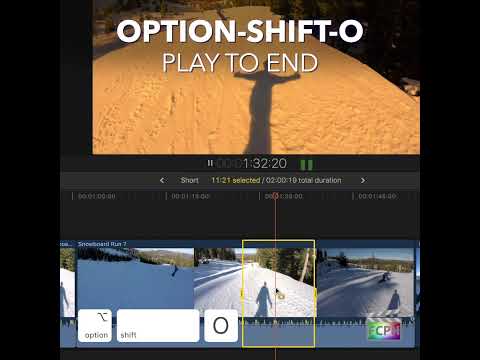
Keyboard shortcut: OptionShiftO
When it comes to editing in Final Cut Pro, efficiency is key. Whether you’re trimming clips, fine-tuning audio, or reviewing your timeline for errors, time-saving shortcuts can significantly streamline your workflow. One such shortcut that many editors swear by is Option-Shift-O, which commands Final Cut Pro to "Play to End".
What Does the "Play to End" Shortcut Do?
The Option-Shift-O keyboard shortcut triggers Play to End, meaning the playback head will start from its current position and play through to the end of the selection, such as a selected clip or range, and then stop. Essentially, it’s a quick way to review the remainder of your sequence without having to manually drag the playhead to the end.
For example, if you’re working on a long timeline and want to preview how the remaining clips, effects, or transitions will look in real-time, Play to End offers a fast and convenient solution.
How Editors Can Use "Play to End" in Their Workflow
For editors, time is precious, and Option-Shift-O can save a lot of it. Here are some practical ways you can use this keyboard shortcut to improve your editing process:
1. Reviewing Your Edit in Real-Time
Once you’ve made edits, you might want to review how they all flow together. Instead of manually dragging the playhead to the end of your project, you can simply use Option-Shift-O to play everything from your current position to the end. It’s a great way to quickly check transitions, timing, and pacing without interruption.
2. Spotting Continuity or Technical Errors
The longer your project, the more opportunities there are for subtle mistakes. Whether it’s a jump cut, an abrupt audio transition, or a misplaced effect, using Play to End helps you quickly spot issues in the final stretch of your edit. By listening or watching the playback from your current position, you can catch any errors you might have missed during earlier stages of editing.
3. Final Review Before Export
Before exporting a project, editors often do a comprehensive review to ensure everything looks perfect. The Option-Shift-O shortcut is perfect for this final playback, as it allows you to easily preview your project from the current edit point to the end. This ensures that all elements, from video transitions to audio cues, are synchronized and polished.
4. Checking Specific Marked Sections
If you've placed markers along your timeline (for example, to indicate specific scenes, audio cues, or sections needing further work), Option-Shift-O is useful for reviewing how everything plays out after a marked section. This shortcut lets you pick up where you left off and quickly assess the flow without manually navigating your timeline.
Why Is "Play to End" So Helpful?
The Option-Shift-O shortcut removes the need to drag the playhead to the end of the timeline manually. This small but mighty time-saver can make a huge difference when working on longer projects. Instead of stopping to move the playhead, you can continue to focus on the content of your edit, ensuring a more fluid and efficient editing process.
Conclusion
In the fast-paced world of video editing, maximizing your efficiency is crucial. Learning to use Option-Shift-O in Final Cut Pro is one simple but powerful way to enhance your workflow. By allowing you to review your project from any point to the end, this shortcut ensures that you can quickly catch errors, perfect your timing, and keep your edits on track.
So next time you’re deep into a project and need to review the rest of your edit, remember: Option-Shift-O is your go-to tool for a seamless, uninterrupted playback.
This blog post should help Final Cut Pro users understand the value of the Option-Shift-O shortcut and how they can use it to optimize their editing workflow.


Related tutorials
-
Final Cut Pro Shortcut | Shift-O | Jump to Range End
If you’ve ever felt lost navigating your timeline while marking ranges in Final Cut Pro, you’re not alone. Quickly moving between your In and Out points…
-

How to Use the Option-Shift-I Shortcut in Final Cut Pro to Play From Beginning
Final Cut Pro is a powerful video editing tool that offers a wide array of shortcuts to help editors work more efficiently. One of the most useful…
-

Mastering Final Cut Pro: The Power of the Option-O Shortcut to Clear Range End
As editors, we're always looking for ways to streamline our workflows and speed up our editing process. One of the more subtle yet powerful shortcuts in…