Mastering Final Cut Pro: How to Use the Shift-Right Arrow Shortcut for Efficient Frame Navigation
Keyboard shortcut: ShiftRight Arrow
Whether you're a seasoned editor or just getting started with Final Cut Pro, understanding and mastering keyboard shortcuts can significantly speed up your editing process. One particularly helpful shortcut that often flies under the radar is the Shift-Right Arrow — a quick way to move forward by 10 frames in your timeline or viewer.
In this post, we'll take a closer look at what this shortcut does, how editors can use it effectively, and why it can be a game-changer for precise editing in Final Cut Pro.
What Does the Shift-Right Arrow Do?
In Final Cut Pro, pressing Shift + Right Arrow moves the playhead forward by exactly 10 frames. This is different from the single-frame advance (using the Right Arrow), which moves the playhead forward one frame at a time. The Shift-Right Arrow shortcut offers a faster and more efficient way to move through your timeline without losing precision.
This small but powerful tool is especially useful for fine-tuning edits, reviewing footage, and aligning clips in a more controlled manner.

How to Use the Shift-Right Arrow in Final Cut Pro
- Fine-Tune Your Edits When you're editing a clip or adjusting the timing of a cut, you might want to move in small increments. The Shift-Right Arrow allows you to jump forward by 10 frames, making it easier to precisely adjust the timing of your edits. For example, if you’re syncing audio and video, this tool helps you stay on target without overshooting your desired frame.
- Navigate Through Footage with Precision While reviewing your footage or watching a rough cut, you can use the Shift-Right Arrow to jump forward 10 frames at a time. This is ideal for reviewing key moments, such as specific cuts, transitions, or important actions within your footage. It lets you skip ahead quickly without losing track of where you are in the timeline.
- Speed Up Your Workflow Constantly moving the playhead frame by frame can feel tedious, especially when you're making multiple adjustments to a sequence. With the Shift-Right Arrow, you can move forward by 10 frames in one swift motion, which can significantly speed up your editing process without sacrificing accuracy.
- Multicam Editing If you’re working with multiple camera angles in a multicam project, the Shift-Right Arrow is invaluable for syncing footage across different angles. It lets you quickly jump between frames in the timeline to ensure that your edits stay in sync with the action happening on screen.
Why Editors Love the Shift-Right Arrow
The main advantage of using the Shift-Right Arrow is that it strikes a balance between speed and precision. When you're deep into an edit, every second counts — especially if you're working on a deadline or need to make quick, fine-tuned changes. This shortcut offers an efficient way to navigate your timeline without having to manually drag the playhead or use the frame-by-frame arrow key method.
Additionally, this shortcut can help reduce repetitive movements, allowing you to focus more on the creative aspects of your edit rather than getting bogged down by the mechanics of timeline navigation.
Bonus Tip: Combine with Other Shortcuts for Maximum Efficiency
For even more efficient editing, try combining the Shift-Right Arrow with other Final Cut Pro shortcuts. For example:
- Command + Right Arrow: Moves the playhead to the next edit point.
- Shift + Left Arrow: Moves the playhead 10 frames backward.
- Left/Right Arrow: Move the playhead by a single frame.
When used together, these shortcuts can help you navigate the timeline at a variety of speeds while maintaining precision at every stage of your edit.
Conclusion
The Shift-Right Arrow in Final Cut Pro is a simple yet powerful shortcut that can greatly improve your efficiency and precision while editing. By allowing you to move forward by 10 frames at a time, this tool helps you fine-tune edits, navigate footage smoothly, and streamline your workflow. Once you incorporate it into your editing routine, you'll likely wonder how you ever worked without it.
Try it out in your next project, and see how much faster and more precise your edits become!


Related tutorials
-

How to Use the Shift-Command-Right Arrow Keyboard Shortcut in Final Cut Pro for Multi-Camera Editing
When it comes to editing footage shot with multiple cameras, efficiency is key. Editors often need to switch between different camera angles quickly to…
-
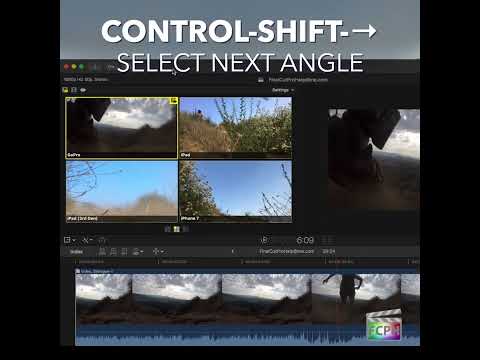
Mastering Multicam Editing in Final Cut Pro: How to Use the Control-Shift-Right Arrow Shortcut
If you're working on a project that requires cutting between multiple camera angles, you know how crucial it is to have an efficient workflow. Whether…
-

Mastering the Option-Shift-Right Arrow Shortcut in Final Cut Pro
If you're an editor working with multi-camera or multi-angle setups in Final Cut Pro , you know that managing both video and audio tracks can become a…