How to Use the Shift-Command-D Shortcut in Final Cut Pro: Duplicate Project as Snapshot
Keyboard shortcut: ShiftCommandD
If you're a video editor using Final Cut Pro, you're probably already familiar with the importance of managing multiple versions of a project. Whether you're trying out new edits, experimenting with effects, or preparing a project for client review, keeping a clean and organized workflow is crucial. One useful tool Final Cut Pro offers to help you with this is the Duplicate Project as Snapshot feature, triggered by the keyboard shortcut Shift-Command-D.
In this post, we'll break down what this shortcut does, how it can improve your editing workflow, and why it's a must-know for every editor working in Final Cut Pro.
What Does the Shift-Command-D Shortcut Do?
The Shift-Command-D keyboard shortcut in Final Cut Pro allows you to duplicate your project as a snapshot. In simple terms, this means you create a copy of your project, including all clips, edits, and adjustments, saved as a snapshot. Unlike a regular duplicate, a snapshot gets its own new parent Compound and Multicam clips, so it's fully independent of the original project.
A snapshot is essentially a preserved version of your project at a specific point in time. It's stored in your Library, separate from the original project. The beauty of this feature is that changes you make later, even to shared Compound or Multicam clips in the original project, don't ripple into the snapshot.
Why Use the Duplicate Project as Snapshot Feature?
There are several key reasons why this feature is incredibly useful for editors:
1. Safe Experimentation
When you're deep into an edit, you might want to try out a new effect, change the color grading, or add a transition. However, you're not sure if it will work well with your existing edits. Rather than making irreversible changes to your project, creating a snapshot allows you to experiment freely. If your changes don't work out as expected, you can always return to the original project or snapshot.
2. Versioning and Milestones
Creating different versions of a project is common, especially as deadlines approach or when you're preparing content for client reviews. With Duplicate Project as Snapshot, you can create a "frozen" version of your project at a specific milestone. For example, if you've reached a point where the edit is "locked" but you still need to make minor tweaks later, you can create a snapshot to preserve the current state, then continue editing on the new version.
3. Safe Workflow in Collaborative Environments
If you're working on a project with multiple collaborators or team members, it's important to track changes and ensure everyone is working on the right version of the project. Snapshots provide an easy way to track project progress while allowing each team member to work independently. For example, if you hand off your project to a colleague for sound design, they can duplicate the project as a snapshot and make changes without disturbing your original edit.
4. Easy Revert to Previous Edits
With the snapshot feature, if you're not happy with a particular edit or set of changes, you don't have to start from scratch. Instead, you can revert to the previous snapshot and restore the project to that earlier point in time. This helps ensure that no progress is lost, even if you want to backtrack on certain edits or decisions.
How to Use the Shift-Command-D Shortcut
Using the Shift-Command-D shortcut in Final Cut Pro is simple:
- Finish or Pause Your Editing: Before creating a snapshot, make sure you're at a point where you want to preserve your current project state.
- Press Shift-Command-D: Select the project in the Browser, then press Shift + Command + D. A snapshot copy of the project appears in the same event.
- Work on the New Version: Keep editing your original project. The snapshot stays exactly as it was, including its Compound and Multicam clips.
- Name Your Snapshot: Final Cut Pro names the snapshot for you, without asking. Select it in the Browser and rename it to something meaningful that matches the version or milestone you're preserving.
- Return to Previous Snapshots if Needed: If you decide to return to the earlier version of your project, simply navigate to your Library and open the snapshot you created. You can go back to this version at any time, without losing any of your work.
Pro Tips for Using Snapshots in Your Workflow
- Use Snapshots for Major Edits: If you're about to make a big change (like color grading or applying a series of effects), create a snapshot first. This way, you can always revert to the pre-edit version if needed.
- Snapshot as a Milestone: Create snapshots at key points in your edit (e.g., rough cut, locked edit, color correction) to track progress over time.
- Rename Snapshots Clearly: Be sure to name each snapshot so that you can easily identify it later. For instance, use names like “Project V1,” “Client Feedback Version,” or “Color Grading Draft.”
- Store Snapshots in Different Libraries: If you're working on a large project with multiple collaborators, consider storing snapshots in different libraries to organize different versions or tasks more effectively.
Final Thoughts
The Shift-Command-D shortcut for Duplicating Project as Snapshot in Final Cut Pro is an incredibly powerful tool for maintaining a clean and flexible editing workflow. By allowing you to create duplicate versions of your project while leaving the original untouched, it provides a safety net for experimentation, versioning, and collaboration. Whether you're working solo or with a team, this feature can help streamline your editing process and protect your hard work.
So next time you're about to make a major change or reach a milestone in your project, don’t forget to press Shift-Command-D and create a snapshot. It’s one of those small time-saving tricks that can make a huge difference in your overall productivity and peace of mind.
Related tutorials
-

How to Use the Shift-Command-Y Shortcut in Final Cut Pro: Audition Duplicate from Original
In Final Cut Pro, Shift-Command-Y runs Audition: Duplicate from Original . It duplicates the selected audition clip without the effects that have been…
-
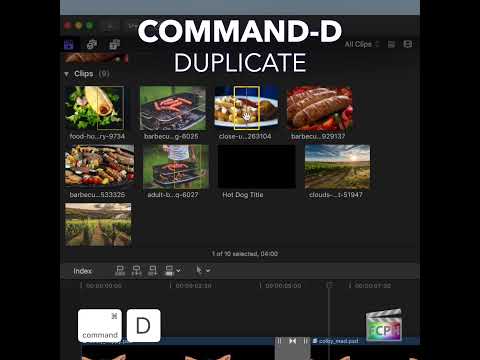
How to Use the Command-D Shortcut in Final Cut Pro to Duplicate Projects and Clips
Before you make a big change to an edit, it’s smart to have a safe copy. In Final Cut Pro, Command-D is the Duplicate command. It duplicates the selected…
-

Final Cut Pro Shortcut | Shift-Command-7 | Show or Hide Angle Viewer
If you're editing a video with multiple camera angles in Final Cut Pro , you'll hopefully discover how important it is to use Multicam clips. One of the…