How to Use the Command-D Shortcut in Final Cut Pro to Duplicate Projects and Clips
Keyboard shortcut: CommandD
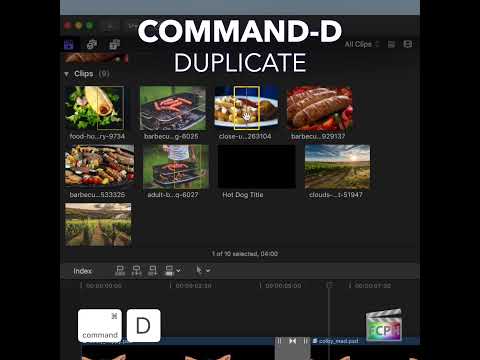
Before you make a big change to an edit, it’s smart to have a safe copy. In Final Cut Pro, Command-D is the Duplicate command. It duplicates the selected project or clip in the Browser.
What Command-D Does
Select a project or a clip in the Browser and press Command-D. Final Cut Pro creates a copy in the same event. For a project, the duplicate contains your whole edit, so you can experiment freely while the original stays untouched.
How to Duplicate a Project
- In the Browser, select the project you want to copy.
- Press Command-D (or choose Edit > Duplicate).
- A duplicate project appears in the Browser. Rename it right away, for example "Client Cut v2," so you always know which version is which.
- Double-click the duplicate to open it in the Timeline and start experimenting.
Duplicating Clips in the Browser
Command-D works on clips in the Browser too. Duplicating a Browser clip doesn’t copy the media file on your drive; the new clip simply refers to the same media. That makes it a lightweight way to keep, for example, a version of a clip with different metadata or a different name.
When to Use It
- Versioning: Make a copy before a major restructure, a client revision, or a social-media cut-down.
- Alternate edits: Build a short version and a long version from the same starting point.
- Peace of mind: If the experiment doesn’t work, your original project is still exactly as you left it.
Tips
- Want to copy a clip inside the Timeline instead? Hold Option and drag the clip to make a copy there.
- Keep your versions organized by naming them consistently and keeping them in the same event as the original.
Command-D takes a second, and it can save you hours. Make it a habit before every big change.




Related tutorials
-
How to Use the Shift-Command-D Shortcut in Final Cut Pro: Duplicate Project as Snapshot
If you're a video editor using Final Cut Pro , you're probably already familiar with the importance of managing multiple versions of a project. Whether…
-

How to Use the Shift-Command-Y Shortcut in Final Cut Pro: Audition Duplicate from Original
In Final Cut Pro, Shift-Command-Y runs Audition: Duplicate from Original . It duplicates the selected audition clip without the effects that have been…
-

How to Use the Option-Command-G Shortcut to Synchronize Clips in Final Cut Pro
If you're an editor working with Final Cut Pro , you know how important it is to keep your video and audio perfectly in sync. Whether you're dealing with…