How to Use the Shift-A Keyboard Shortcut for Multicam Audio Monitoring in Final Cut Pro
Keyboard shortcut: ShiftA

What Shift-A Does
In Final Cut Pro, Shift-A runs Monitor Audio. It's a multicam command: it turns audio monitoring on or off for the angle you're skimming. That lets you listen to the audio from other angles while you work, without changing which audio is actually used in your edit.
It doesn't mute tracks or solo a regular clip in the timeline. For that, use the solo and disable commands instead.
Where It Works
Shift-A is used with multicam clips, while skimming angles in the Angle Viewer or the angle editor. It's handy when several cameras recorded their own sound and you want to hear what each one picked up.
How to Use It
- Open the Angle Viewer with Shift-Command-7, or open the multicam clip in the angle editor.
- Skim over the angle you want to hear.
- Press Shift-A to turn on audio monitoring for that angle.
- Play or skim, and you'll hear that angle's audio while you review.
- Skim the angle again and press Shift-A to turn monitoring off.
Tips
- Use it to compare a camera's scratch audio with your dedicated microphone before deciding which audio to cut with.
- Monitoring is only for listening. It doesn't change the active audio angle in your project.
- If you hear doubled or echoing sound, check which angles you're monitoring and turn the extras off.


Related tutorials
-

Option-Shift-1 in Final Cut Pro: Multicam Audio and Video Switching
When you cut a multicam clip in Final Cut Pro, each cut or switch can change the video, the audio, or both. Option-Shift-1 turns on audio/video mode , so…
-
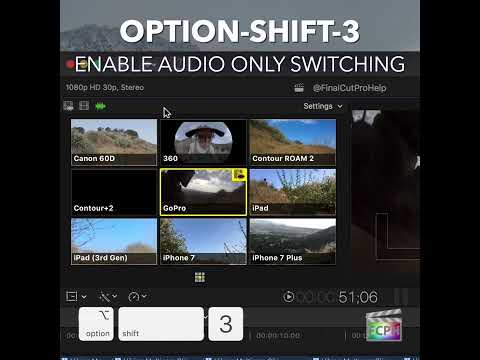
Maximizing Your Final Cut Pro Workflow with the Option-Shift-3 Shortcut: Audio-Only Multicam Switching
In Final Cut Pro, Option-Shift-3 runs Cut/Switch Multicam Audio Only . It turns on audio-only mode for multicam cutting and switching. After you press it…
-

How to Use the Control-Shift-S Keyboard Shortcut in Final Cut Pro to Detach Audio
Final Cut Pro is a powerful video editing software used for everything from basic edits to complex productions. One of its most useful features is the…