Create Your Ideal Editing Space: Final Cut Pro X Custom Workspace Tutorial

When it comes to video editing, having a workspace that is tailored to your needs can greatly improve your workflow and make the process more efficient. In this tutorial, we'll show you how to create a custom workspace in Final Cut Pro X that is perfectly suited to your editing style.
Starting with the basics, we'll guide you through the process of customizing the layout of the Final Cut Pro window and setting up shortcuts to show or hide different areas. You'll learn how to customize the workspace from the Window menu, and how to show or hide audio meters to suit your needs.
We'll also show you how to create and save your own custom workspace, and how to set up a dual display workspace that lets you see your footage and timeline side-by-side.
In addition, we'll share some additional workspace tips that will help you get the most out of your custom setup. And if you ever need to move your custom workspace to a different Mac, we've got you covered with our step-by-step guide.
By the end of this tutorial, you'll have all the knowledge you need to create a custom workspace that is perfectly tailored to your editing needs. So, if you're ready to take your editing to the next level, join us and learn how to set up a custom workspace in Final Cut Pro X today!
In this video
- The one Final Cut Pro window
- Shortcuts to show/hide areas
- Customize the workspace from the Window menu
- Show/hide audio meters
- Command-0 | Default Workspace
- Create and save a custom workspace
- Dual Displays workspace
- Additional workspace tips
- Moving custom workspaces to a different Mac
Related tutorials
-
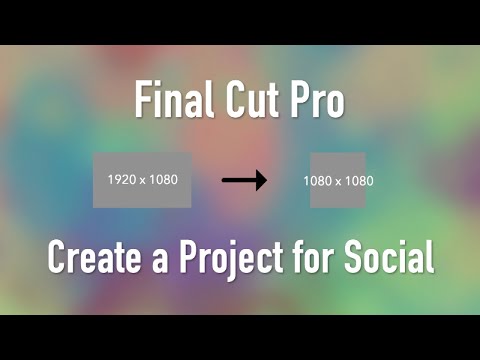
Final Cut Pro X Tutorial: How to Create a Custom Project for Social Media (Vertical, Square, Etc.)
In this Final Cut Pro X tutorial, we will guide you through the process of creating a custom project for social media. With the increasing popularity of…
-

Final Cut Pro X Tutorial: How to Create Custom Metadata Fields
In this tutorial, we'll show you how to create custom metadata fields in Final Cut Pro X. Custom metadata fields can help you organize your footage and…
-

Motion 5 Tutorial: How to Create Eye-Catching Callout Titles for Your Videos
Want to make your videos more engaging and informative? In this tutorial, we show you how to create eye-catching callout titles in Motion 5. With this…