Streamline Your Editing Workflow with the Control-H Shortcut in Final Cut Pro
Keyboard shortcut: ControlH
Final Cut Pro is a powerful tool for video editors, offering a wide range of shortcuts and features designed to make the editing process faster and more efficient. One such feature that can save you time and help keep your project organized is the Control-H keyboard shortcut, which allows you to hide rejected clips.
If you’ve ever worked with a large number of clips and found yourself overwhelmed by rejected footage, you’ll appreciate this simple but effective shortcut. Let’s dive into how it works and how editors can use it to improve their workflow.
What Does Control-H Do in Final Cut Pro?
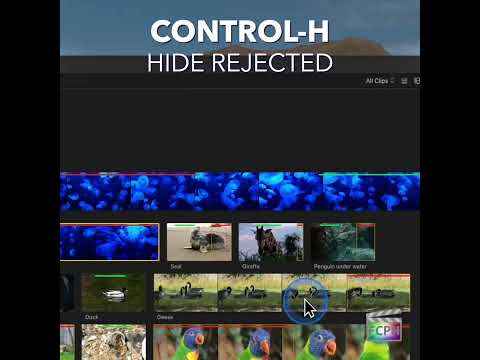
In Final Cut Pro, Control-H is used to hide rejected clips in the Browser. This is particularly helpful when you have a large collection of footage, some of which you’ve marked as rejected, but you don’t want to delete them entirely. Instead, you can hide them from view, keeping your workspace focused and clutter-free.
When a clip is marked as rejected, it’s shown with a red line across the rejected part in the Browser. Rejected clips are often footage that you know you won’t use but want to keep for reference or possible future use. The Control-H command lets you hide these clips temporarily, making it easier to focus on the clips you plan to use in the project.
How Editors Use Control-H While Editing
Here’s how Control-H fits into the editing process:
- Marking Clips as Rejected
First, you’ll need to mark clips you don’t want to use as rejected. To do this, select the clip or range in the Browser and press Delete. This will mark it with a red line, indicating that it has been rejected.
This is often done during the rough cut or assembly stage when you're reviewing footage and determining what to keep. - Hiding Rejected Clips
Once you’ve marked a clip as rejected, use the Control-H shortcut to quickly hide all rejected clips from view.
This is especially useful when you have a large number of clips and don’t want the rejected ones cluttering up your workspace. By hiding them, you can focus on the clips you’re actively using and keep your project organized. - Improved Workflow and Focus
The ability to hide rejected clips helps editors maintain focus and clarity, particularly during the rough cut phase when there can be many clips to sift through. Hiding rejected clips allows you to keep the Browser clean, without distractions from footage you’ve already decided to discard.
This feature can be a huge time-saver when you’re working with long sequences, multiple takes, or large-scale projects with lots of footage. - Revealing Rejected Clips Again
If you ever want to view your rejected clips again, press Control-C to show All Clips again, or Control-R to show only rejected clips. This flexibility ensures you can always return to your rejected clips later if needed, without permanently removing them from your project.
Why This Matters for Editors
As any editor knows, organization is key to maintaining an efficient workflow. With the Control-H shortcut, Final Cut Pro offers a quick way to hide unwanted footage and focus on what’s important. It’s especially useful during the rough cut stage, where editors often have to sift through hours of footage. By using this shortcut, you can quickly hide unwanted clips and work with a streamlined selection of material.
The ability to hide rejected clips helps keep your project cleaner and more manageable, ensuring you can stay productive and focused without being distracted by clips that aren’t part of your final cut.
Final Thoughts
The Control-H shortcut is just one of many time-saving features in Final Cut Pro, but it can make a significant difference in your workflow. By marking clips as rejected and using Control-H to hide them, you can maintain a clean, organized workspace, allowing you to focus on the task at hand—editing your video.
Give Control-H a try in your next project and see how it can help streamline your editing process!





Related tutorials
-
Final Cut Pro Shortcut | Control-V | Show and Hide Video Animation
As a Final Cut Pro editor, you're likely aware of keyframes and that they are used for animation. Whether you're adjusting position, scale, opacity, or…
-
Intro to Browser Filters in Final Cut Pro With Control-C Shortcut
As an editor, efficiency is key when it comes to managing complex timelines and projects. Utilize the filters in the Final Cut Pro browser to help locate…
-

How to Use the Control-Shift-S Keyboard Shortcut in Final Cut Pro to Detach Audio
Final Cut Pro is a powerful video editing software used for everything from basic edits to complex productions. One of its most useful features is the…