Mastering the Paste Insert at Playhead Command in Final Cut Pro: A Time-Saving Trick for Editors
Final Cut Pro is packed with powerful tools to help editors create seamless, professional-quality videos. One feature that often goes underutilized, but can significantly streamline your workflow, is the Paste Insert at Playhead command (Command-V). This simple yet effective tool allows you to insert clips into your timeline without disturbing your existing edits, saving you time and effort during the editing process.
In this blog post, we’ll break down how Command-V works, and show you how editors can use it to enhance their editing workflow in Final Cut Pro.
What is the Paste Insert at Playhead Command?
The Paste Insert at Playhead command (Command-V) allows you to paste a copied or cut clip directly at the location of the playhead on your timeline. Unlike the regular Paste function (which simply pastes at the position of your currently selected clip), Paste Insert will shift existing clips to the right to make room for the new media without overwriting anything. It’s the perfect tool for inserting clips into your project without disrupting the flow of your existing timeline.
How Does it Work?
Here’s a simple breakdown of the process:
- Copy or Cut the clip you want to insert (using Command-C or Command-X).
- Move the playhead to the point in the timeline where you want the new clip to appear.
- Press Command-V to paste the clip at the playhead, pushing any existing clips to the right to accommodate the new media.
This means that the inserted clip will not overwrite or interfere with clips already in your timeline; instead, it will "push" them forward, preserving the sequence and timing of your edit.
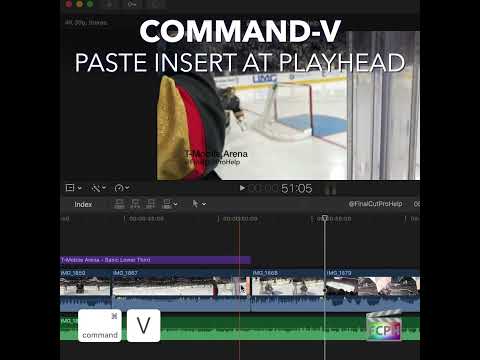
How Editors Can Use Paste Insert at Playhead in Final Cut Pro
Here are some of the most common ways that Final Cut Pro editors use the Paste Insert at Playhead command:
1. Inserting Clips Without Overwriting Existing Footage
When you’re working on a complex timeline and need to insert a clip at a specific point without messing up your previous edits, Command-V is a game-changer. Instead of having to manually adjust clips around the inserted content, the Paste Insert function does all the work for you—ensuring your edit stays intact.
Example Use Case:
You have a timeline with a shot of a cityscape, and you want to insert a close-up shot of a person speaking right in the middle of the scene. Using Command-V, you can paste the new clip into place without affecting the surrounding footage.
2. Inserting Audio or Video Segments at the Right Moment
When adding sound effects, background music, or additional footage, precise placement is key. With the Paste Insert at Playhead command, you can place a clip exactly where you need it on the timeline, and Final Cut Pro will handle shifting the clips accordingly.
Example Use Case:
Imagine you’re working with a voiceover and need to insert a sound effect at a specific moment. By pasting the sound effect at the playhead, you can easily synchronize the audio without having to re-adjust everything after the paste.
3. Maintaining Perfect Timing for Transitions
Timing is everything, especially when you're using transitions in Final Cut Pro. Command-V ensures that newly inserted clips won’t disrupt the carefully timed transition points between clips, giving you more control over the editing process.
Example Use Case:
You’re using a cross-dissolve transition between two video clips, but you want to insert a title card in between. Command-V allows you to paste the title card exactly where it should go—between the two clips—without altering the transition effect.
4. Inserting Clips Between Key Moments
Inserting a clip into an already well-structured sequence is often tricky. With Paste Insert at Playhead, you can ensure that the new clip fits into the timeline at the exact spot you want, and Final Cut Pro will adjust everything around it accordingly.
Example Use Case:
You’ve got a fast-paced montage, and you need to add a quick cutaway shot at a very specific moment. Using Command-V, you can insert the new clip precisely where it belongs, without the need to manually shuffle clips around.
Why Use Paste Insert at Playhead?
- Preserve Timing: Whether you’re working with multiple video or audio tracks, Paste Insert at Playhead ensures that the timing of your sequence remains intact, even as you add new clips.
- Non-Destructive Editing: This function doesn’t overwrite your existing clips, making it safer and more efficient when adding new elements to your project. You don’t have to worry about accidentally deleting or altering footage that’s already in your timeline.
- Increased Efficiency: Editors working on complex timelines with many clips and layers can save a significant amount of time by using this command. It eliminates the need to manually adjust clips after inserting new media, allowing you to focus on the creative aspects of your project.
Conclusion
The Paste Insert at Playhead command (Command-V) is a powerful, time-saving feature that all Final Cut Pro editors should have in their toolkit. Whether you're inserting footage, sound effects, or transitions, this command helps you maintain a smooth and efficient workflow without disrupting the rest of your project. With the ability to insert clips precisely where you need them, Command-V becomes an invaluable tool for both beginners and advanced editors alike.
By mastering this feature, you can streamline your editing process, ensure your timeline stays organized, and focus more on telling your story, not managing your clips.


Related tutorials
-

How to Use the Option-Command-V Shortcut to Paste Effects in Final Cut Pro
When you're editing video in Final Cut Pro , efficiency is key. Applying the same effects to multiple clips can be time-consuming if done manually…
-

How to Use the Shift-Command-V Keyboard Shortcut in Final Cut Pro: Paste Attributes Explained
If you're an editor working in Final Cut Pro , you know how important it is to work efficiently and maintain consistency across your project. One of the…
-

Final Cut Pro Shortcut | Command-Option-Delete | Delete Selection Only
If you’re an editor working in Final Cut Pro, you know how critical it is to maintain precise timing while cutting, trimming, and deleting clips. But…