Mastering the Left Arrow Shortcut in Final Cut Pro: A Must-Have for Frame-By-Frame Editing
Keyboard shortcut: Left Arrow
When it comes to fine-tuning your edits in Final Cut Pro, precision is key. Whether you're working on a complex sequence or making micro-adjustments to a single clip, navigating through your footage frame by frame is often essential. One of the simplest yet most powerful tools in your editing arsenal is the Left Arrow keyboard shortcut: Go to Previous Frame.
In this post, we’ll explain what this shortcut does and how professional editors use it to streamline their workflow in Final Cut Pro.
What Does the Left Arrow Shortcut Do in Final Cut Pro?
The Left Arrow keyboard shortcut in Final Cut Pro moves the playhead one frame backward in the timeline or viewer. This allows you to step backward through your footage, giving you a highly precise way to review and adjust edits at the frame level.
This functionality is particularly useful when you need to make specific adjustments to transitions, effects, or keyframes. It ensures granular control over the timeline, allowing for maximum accuracy in every detail of your edit.
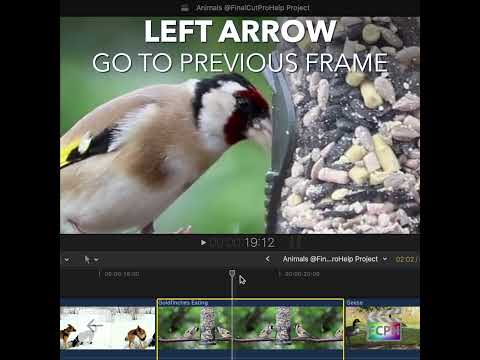
How Editors Use the Left Arrow Shortcut
Here are a few common scenarios where the Left Arrow shortcut proves invaluable for video editors:
- Frame-By-Frame Navigation
The Left Arrow is essential when you need to move frame by frame through your footage. This is crucial for tasks such as syncing audio with video, checking transition timing, or evaluating complex motion. Using the Left Arrow lets you navigate backward one frame at a time, ensuring that every edit is precise. - Fine-Tuning Edits
During the editing process, you might need to adjust a cut, effect, or transition by a single frame. The Left Arrow allows for these small adjustments to be made quickly. For instance, if you've trimmed a clip too short or placed a transition slightly off, the Left Arrow helps you rewind just one frame to make the necessary correction. - Reviewing Complex Edits
When dealing with intricate sequences that involve multiple layers of video, audio, and effects, stepping through the timeline frame by frame can help spot visual errors or glitches. If you're animating a clip or applying effects like motion blur or opacity changes, the Left Arrow lets you closely examine each frame, ensuring everything looks smooth and polished. - Navigating Between Edit Points
The Left Arrow only moves one frame at a time, so it won't jump to edit points on its own. To get to the previous edit point, press the Semicolon (;) key, then use the Left Arrow to step back frame by frame from there.
A Key Shortcut for Precision Editing
The Left Arrow is a simple yet powerful shortcut that plays a vital role in professional video editing. It gives you precise control over your footage, ensuring that every frame aligns perfectly with your creative vision.
In addition to the Left Arrow, Final Cut Pro offers other navigation shortcuts, like the Right Arrow (which moves the playhead forward by one frame), allowing you to navigate fluidly through frames in either direction. These shortcuts enable a faster workflow, enhancing both the speed and quality of your edits.
Final Thoughts
Mastering keyboard shortcuts like the Left Arrow can significantly improve your efficiency and precision as an editor in Final Cut Pro. Whether you’re refining a cut’s timing, analyzing complex effects, or making sure every detail is spot on, the Left Arrow is a tool no Final Cut Pro user should overlook.
By incorporating frame-by-frame navigation into your workflow, you can elevate your video editing skills and produce professional, polished content every time.
Try it for yourself: Open a project in Final Cut Pro, position the playhead in the middle of a clip, and use the Left Arrow to move backward one frame at a time. You’ll quickly see just how valuable this tool can be for achieving frame-level precision in your edits.
Happy editing!


Related tutorials
-

Mastering Keyboard Shortcuts in Final Cut Pro: How to Use the Home key (fn-Left arrow) to Go to the Beginning
If you're an editor working in Final Cut Pro , time is precious. Whether you're trimming clips, adjusting audio, or crafting the perfect sequence, every…
-

Maximizing Efficiency in Multi-Camera Editing: How to Use the Shift-Command-Left Arrow Shortcut in Final Cut Pro
If you’re working with multiple camera angles in Final Cut Pro , you know how important it is to stay efficient while editing. One of the best ways to…
-

Mastering the Command-Left Arrow Shortcut in Final Cut Pro: A Time-Saving Tip for Editors
When it comes to video editing, efficiency is key. Whether you're trimming clips, adjusting audio levels, or refining transitions, minimizing the time…