Mastering the Command-B Shortcut in Final Cut Pro: The Quick Guide for Editors
Keyboard shortcut: CommandB
Final Cut Pro is packed with tools designed to streamline your editing workflow, but some of the most powerful features are often the simplest. One such tool is the Command-B keyboard shortcut, which allows you to blade (cut) a clip at the position of your playhead or skimmer. Whether you’re slicing up footage to fit a new rhythm or splitting clips for precise edits, Command-B is an essential shortcut every Final Cut Pro editor should master.
In this post, we’ll break down how Command-B works and how you can use it to speed up your editing process.
What is Command-B in Final Cut Pro?
The Command-B shortcut allows you to instantly slice a clip at the current position of your playhead (the vertical line indicating your current frame in the timeline) or skimmer (the tool that lets you hover over clips to preview them without moving the playhead). It’s an incredibly useful feature for editors who need to make quick cuts without interrupting their flow.
When you press Command-B, Final Cut Pro creates a cut in the clip exactly where your playhead or skimmer is located. It’s a fast way to divide your footage into smaller pieces, giving you more control over how you edit and organize your timeline.
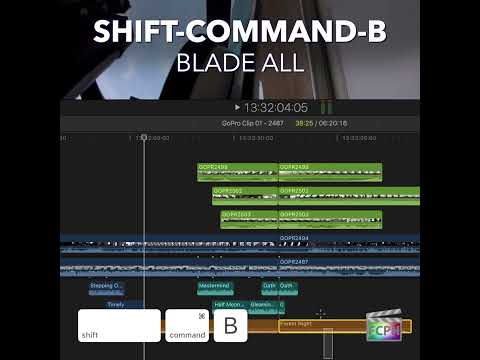
How to Use Command-B: Step-by-Step
Using Command-B is simple, and it works with both the playhead and the skimmer. Here’s how to use it in different scenarios:
1. Cutting at the Playhead
- Step 1: Position the playhead at the point in the timeline where you want to make a cut.
- Step 2: Press Command-B. This will slice the clip at the playhead’s current position.
Tip: Use the left and right arrow keys to fine-tune the position of the playhead for more precise cuts.
2. Cutting with the Skimmer
- Step 1: Move your mouse cursor over the timeline and enable the skimmer. The skimmer lets you hover over clips to preview their content without moving the playhead.
- Step 2: As the skimmer moves over the timeline, find the point where you want to make the cut.
- Step 3: Press Command-B to blade the clip at the skimmer’s position.
Tip: The skimmer is perfect for fast, visual editing. You don’t need to stop and drag the playhead around to get a sense of the clip; just skim and cut as you go.
Practical Uses for Command-B in Editing
1. Quick Cuts for Better Flow
Command-B is ideal for making quick cuts in your footage without interrupting your creative flow. Instead of manually selecting the Blade tool from the toolbar or right-clicking to split the clip, simply position your playhead or skimmer and hit Command-B for an instant cut. This is especially useful during rough cuts or when you’re trimming sections of your timeline.
2. Fine-Tuned Editing
Precision is key when editing, and Command-B gives you the flexibility to make cuts exactly where you need them. By combining this shortcut with the playhead or skimmer, you can split clips down to the exact frame you want. This makes it easier to synchronize music with video, break up long shots, or separate clips for effects and transitions.
3. Non-Destructive Editing
Command-B is a non-destructive way to cut clips. Unlike some editing tools that might delete parts of a clip, cutting with Command-B only splits the clip into separate sections. You can always move, trim, or delete parts of the clip later without losing any original footage.
4. Organizing Clips on the Timeline
Whether you’re working on a documentary, short film, or music video, organizing your clips is crucial. Command-B lets you break down large chunks of footage into smaller, manageable parts, making it easier to rearrange your clips, add transitions, or apply effects to specific segments.
Why Command-B Is a Time-Saver
The ability to quickly cut clips without interrupting your editing flow is a massive time-saver. When you’re on a deadline or working on a fast-paced project, you don’t want to waste time fiddling with menus or tools. Command-B helps you stay focused on your editing, letting you get the results you want without delay.
By integrating this shortcut into your workflow, you'll find yourself making cuts faster, with greater precision, and less effort—so you can spend more time perfecting your project and less time on manual tasks.
Final Thoughts
The Command-B shortcut in Final Cut Pro is an indispensable tool for editors looking to work more efficiently. Whether you’re blading a clip at the playhead or skimmer, this simple shortcut helps you make fast, precise cuts that streamline your workflow. Practice using Command-B to speed up your editing process and take full advantage of Final Cut Pro’s powerful editing capabilities.
Happy editing!




Related tutorials
-

How to Use the Option-Command-B Shortcut for Color Balance in Final Cut Pro
As a video editor, ensuring your footage looks visually consistent can be one of the most time-consuming tasks. Whether you're working with clips shot in…
-

Final Cut Pro Shortcut | Command-Option-Delete | Delete Selection Only
If you’re an editor working in Final Cut Pro, you know how critical it is to maintain precise timing while cutting, trimming, and deleting clips. But…
-

Final Cut Pro Shortcut | Shift-Command-7 | Show or Hide Angle Viewer
If you're editing a video with multiple camera angles in Final Cut Pro , you'll hopefully discover how important it is to use Multicam clips. One of the…