Mastering Final Cut Pro’s Timeline Visibility with Control-Command-2
As editors, efficiency is key. Whether you're fine-tuning your clips, adjusting settings in the Inspector, or just navigating your workspace, every second counts. That’s where keyboard shortcuts come in—and Control-Command-2 in Final Cut Pro is one that can make your editing process smoother and faster.
What Does Control-Command-2 Do?
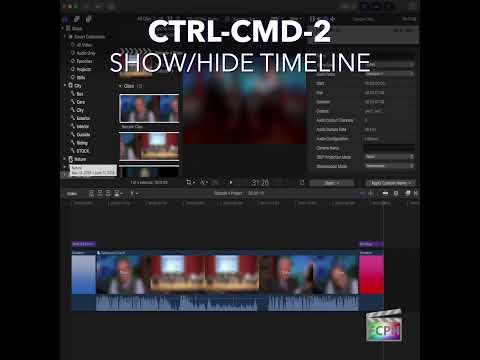
In Final Cut Pro, the Control-Command-2 keyboard shortcut allows you to show or hide the Timeline. The Timeline is where all your video and audio clips are arranged and edited, making it a crucial part of the editing process. But there are times when you might want to temporarily hide the Timeline to focus on other parts of your project.
By using Control-Command-2, you can quickly toggle the visibility of the Timeline, giving you more flexibility to customize your workspace on the fly. This can be especially helpful in the heat of editing, when you need to maximize your screen real estate or quickly switch between different panels.
How Editors Can Use Control-Command-2 in Final Cut Pro
Here are some key ways editors can take advantage of this shortcut while editing:
1. Maximize Screen Space
Sometimes, your screen can feel a bit cramped, especially when working on complex projects. If you're zoomed into the Timeline or need more space to see your clips in the Viewer or the Inspector, hiding the Timeline gives you additional room to focus on the areas that matter most at the moment. It’s the perfect solution for those moments when you need to make detailed adjustments but don’t need to access the Timeline right away.
2. Speed Up Your Workflow
The beauty of keyboard shortcuts is that they let you quickly toggle between different sections of your workspace without having to manually drag windows or click around. With Control-Command-2, you can swiftly hide or reveal the Timeline, saving time and maintaining your editing flow. This is especially useful when you’re jumping between the Timeline, Inspector, and Viewer during the editing process.
3. Simplify Your View for Fine-Tuning
When editing complex projects, there are times when you don’t need to see the entire Timeline. If you're working on a detailed effect in the Inspector or fine-tuning a clip in the Viewer, hiding the Timeline can help reduce visual clutter. This allows you to concentrate on the task at hand without distraction, giving you a clearer view of your project.
4. Clean Workspace for Precision Work
If you’re working with multiple windows or need to focus solely on your timeline edits (like trimming or syncing audio), hiding the Timeline can declutter the interface and give you a cleaner workspace. This is particularly helpful for editors who work in multi-screen setups or need to switch between different tools quickly.
Final Thoughts
The Control-Command-2 shortcut is a small but mighty tool in your editing arsenal. Whether you need more space for fine-tuning, prefer a cleaner workspace, or just want to speed up your workflow, it allows you to adapt Final Cut Pro’s interface to fit your needs. By mastering this simple shortcut, you can make your editing sessions more efficient and less frustrating.
Next time you’re deep into an edit, remember: you don’t always need the Timeline in view. Use Control-Command-2 to toggle it on or off and take control of your workspace like a pro!




Related tutorials
-

Mastering the Timeline Index in Final Cut Pro: The Power of Shift-Command-2
When editing in Final Cut Pro , efficiency is key—especially when working with large, complex timelines. One powerful tool that can help you stay…
-

Mastering Color Grading in Final Cut Pro: The Power of the Control-Command-S Shortcut for the Saturation Pane
Color grading is a crucial aspect of video editing, and in Final Cut Pro , the ability to fine-tune your clips' colors can elevate your project to a…
-
Mastering Roles in Final Cut Pro: How to Use the Control-Option-Command-S Shortcut to Expand/Collapse Subroles
Final Cut Pro is known for its powerful tools and features, enabling editors to efficiently organize, edit, and refine complex video projects. One of the…