Mastering Final Cut Pro: How to Use the Command-3 Shortcut to Speed Up Your Workflow
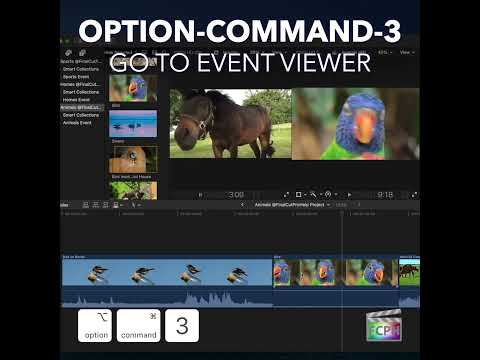
Keyboard shortcut: Command3
As a Final Cut Pro editor, efficiency is key. One of the simplest ways to streamline your workflow is by mastering keyboard shortcuts. Among these, Command-3 stands out as a quick and effective tool for navigating the interface and improving your editing speed.
What is the Command-3 Shortcut?
In Final Cut Pro, the Command-3 keyboard shortcut is used to go to the Viewer. The Viewer is a crucial part of the interface where you can preview clips, watch your sequence in action, and make fine adjustments to your video and audio. It’s a go-to area for many editors when it comes to reviewing and refining their edits.
How Editors Use Command-3 While Editing
- Quick Navigation Between Panels
One of the main benefits of Command-3 is that it allows you to quickly jump to the Viewer from other parts of the interface, like the Timeline or Browser. For editors juggling multiple tasks at once, being able to instantly access the Viewer without clicking around the screen saves valuable time. - Previewing Clips and Sequences
After selecting a clip in the Timeline or Browser, pressing Command-3 takes the focus to the Viewer, where you can immediately preview your footage. This is particularly helpful when you're refining a specific part of your sequence or need to check the timing of your edits. You can play, pause, and scrub through clips with ease, making it much easier to identify areas that need tweaking. - Making Fine Adjustments
The Viewer isn’t just for watching footage—it’s also where you work with onscreen controls, such as Transform, Crop and Distort, and where you can zoom in to check details in the image. Detailed settings for color, effects and audio live in the Inspector. With Command-3, you can quickly make the Viewer active, work there, and then return to the Timeline with Command-2.
Why Use Command-3?
While it may seem like a small shortcut, Command-3 can have a big impact on your editing efficiency. Here are a few reasons why it’s worth incorporating into your Final Cut Pro routine:
- Saves time: Instead of manually clicking through the interface, Command-3 lets you jump straight to the Viewer with just one keystroke.
- Streamlines your workflow: By reducing the need to navigate with the mouse, you can keep your focus on editing rather than constantly repositioning your cursor.
- Increases accuracy: When working on detailed adjustments, being able to quickly view and tweak clips in the Viewer makes your editing more precise.
Conclusion
Mastering keyboard shortcuts like Command-3 is a great way to enhance your Final Cut Pro editing workflow. By using this shortcut to quickly jump to the Viewer, you can streamline your navigation, preview your edits with ease, and make adjustments on the fly. The result? A smoother, more efficient editing experience that helps you get the job done faster and with more precision.
Start using Command-3 today, and watch your editing speed and accuracy improve!


Related tutorials
-

Control-Command-3 in Final Cut Pro: Show or Hide the Event Viewer
In Final Cut Pro, Control-Command-3 shows or hides the Event Viewer . The Event Viewer is a second viewer that sits next to the main Viewer. It isn't…
-
How to Use the Control-Option-Command-3 Shortcut in Final Cut Pro for Stereoscopic 3D Editing
If you're editing stereoscopic 3D footage in Final Cut Pro , it's essential to have the right tools to visualize and fine-tune the 3D effects. One…
-

How to Use the Option-Command-3 Shortcut for Event Viewer in Final Cut Pro
The Event Viewer is a second viewer in Final Cut Pro. It shows the clips you're browsing while the main Viewer keeps showing your project…