Control-A in Final Cut Pro: Show the Audio Animation Editor
Keyboard shortcut: ControlA
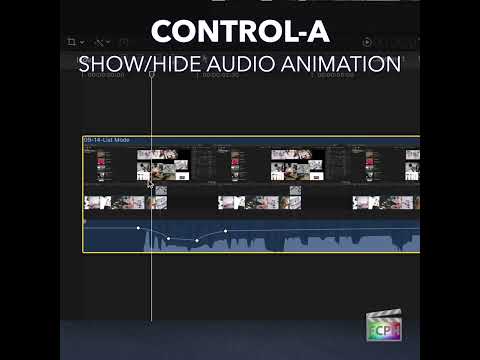
In Final Cut Pro, Control-A shows or hides the Audio Animation editor for the selected clips or components. It's how you see and edit audio keyframes, such as volume, pan, and audio effect parameters, right in the timeline. It does not toggle waveforms on and off.
What the Audio Animation Editor Shows
When you open it, a panel appears directly under the clip in the timeline. It lists the clip's audio settings and any audio effects you've applied. Each one can show its own keyframes over time, so you can see exactly where a level or effect changes and adjust it without opening the Inspector.
How to Use It
- Select a clip with audio in the timeline.
- Press Control-A. The Audio Animation editor opens beneath the clip.
- Choose the parameter you want to work with and view its keyframes.
- Drag keyframes to change their timing or value, or add new ones to shape a change over time.
- Press Control-A again to hide the editor.
When It Helps
- Automating an effect: if you've keyframed an EQ or a reverb so it changes partway through a clip, this is the fastest place to see and adjust that change.
- Checking your work: it shows at a glance whether a clip has audio keyframes you forgot about.
- Several clips at once: select multiple clips before pressing Control-A to open the editor on each of them.
Tips
- Control-V does the same thing for video, showing the Video Animation editor for opacity, transform, and video effect keyframes.
- Expanding the editor gives you more room to work, which makes precise keyframe moves easier.
Control-A is a niche shortcut, but if you keyframe audio effects, it saves a lot of trips to the Inspector.


Related tutorials
-
Final Cut Pro Shortcut | Control-V | Show and Hide Video Animation
As a Final Cut Pro editor, you're likely aware of keyframes and that they are used for animation. Whether you're adjusting position, scale, opacity, or…
-

How to Use the Control-Shift-S Keyboard Shortcut in Final Cut Pro to Detach Audio
Final Cut Pro is a powerful video editing software used for everything from basic edits to complex productions. One of its most useful features is the…
-

How to Use the Control-Command-1 Shortcut in Final Cut Pro to Show/Hide the Browser
If you're an editor using Final Cut Pro , you’re probably aware of how important it is to have a clean and efficient workspace. One feature that can help…