How to Use the Command-9 Keyboard Shortcut in Final Cut Pro to Manage Background Tasks
Keyboard shortcut: Command9
As editors work through projects in Final Cut Pro, it's common to run multiple processes simultaneously—whether it's rendering a timeline, exporting a video, or transcoding media files. While these tasks are often running in the background, they can go unnoticed. Command-9, a powerful and frequently overlooked keyboard shortcut in Final Cut Pro, can help editors keep track of these background tasks efficiently.
In this post, we’ll explore what Command-9 does, how it can improve your editing workflow, and why it’s essential for staying organized while juggling complex projects.
What Does Command-9 Do in Final Cut Pro?
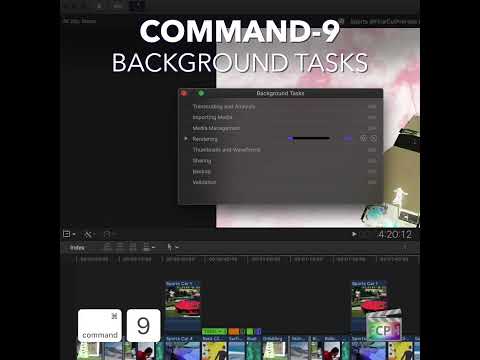
Pressing Command-9 opens the Background Tasks window in Final Cut Pro. This window offers a real-time overview of all the tasks currently running in the background of your project. It displays tasks such as:
- Rendering: Generating previews for effects or transitions
- Transcoding: Converting media files to different formats or resolutions
- Exporting: Finalizing the project for delivery
In essence, Command-9 gives you a transparent view of what’s happening behind the scenes without interrupting your main editing session.
Why Editors Need Command-9
Final Cut Pro is a robust and efficient editing tool, but like all editing software, it demands significant computing power—especially when handling high-resolution files, complex effects, or large projects. Background processes like rendering and exporting can consume a lot of time and resources.
While these processes are critical for finalizing your project, they often occur without much oversight. Without visibility, you might find yourself waiting for something to complete or, worse, unaware that a task has failed.
This is where Command-9 becomes invaluable.
How to Use Command-9 to Improve Your Workflow
- Monitor Background Tasks Pressing Command-9 brings up the Background Tasks window, where you can monitor the tasks running, see how long they’ve been progressing, and check their current status. This provides valuable insight into the progress of renders, exports, and other background operations.
Example: If you’ve started rendering a sequence with heavy effects, instead of guessing how long it will take, you can open the Background Tasks window and see the progress in real-time. - Pause, Resume, or Cancel Tasks Sometimes, you may need to adjust the priority of certain tasks. Maybe you need to stop a render temporarily to address an urgent change in your edit or free up system resources for another process. With Command-9, you can pause, resume, or cancel specific background tasks directly from the Background Tasks window.
Example: If a long export is slowing things down while you keep editing, you can pause it and resume it later. If you spot a problem in the project itself, cancel the export, make the fix, and share again so the new file includes the change. - Keep the Edit Flow Uninterrupted One of the advantages of Command-9 is that it allows you to monitor and manage background tasks without leaving the main editing interface. As an editor, you’re often working under tight deadlines or juggling multiple tasks. Having the ability to check background operations without leaving your timeline or clip viewer ensures your workflow remains uninterrupted and efficient.
- Quick Access to Task Details The Background Tasks window also provides information on the completion status of each process. If a task fails (e.g., an export due to insufficient disk space or rendering errors), it’s flagged immediately, letting you address the issue before it becomes a bottleneck.
Tips for Efficient Use of Command-9
- Don’t Overload Your System: Rendering and exporting can be taxing on your system. By checking the status with Command-9, you can see which tasks are taking the longest and decide whether to prioritize one over the other, optimizing your editing session.
- Use for Troubleshooting: If something goes wrong—like a failed render or a delayed export—Command-9 helps you quickly identify the issue and take corrective action without disrupting your entire workflow.
- Stay Focused on Your Edit: With Command-9, you won’t need to switch between different views or windows to check background tasks. This allows you to stay focused on making edits while keeping full visibility of what’s happening behind the scenes.
Conclusion
The Command-9 keyboard shortcut is a powerful tool for editors using Final Cut Pro. By providing easy access to the Background Tasks window, it lets you monitor and manage essential processes like rendering, transcoding, and exporting, all while continuing your edit. This improves efficiency, reduces frustration, and helps ensure your workflow stays smooth and on track.
Whether you’re working on a tight deadline, handling large files, or simply trying to optimize your system’s performance, Command-9 is a game-changer that every Final Cut Pro user should embrace. So, the next time you’re deep into an edit, remember to press Command-9 and take control of your background tasks!


Related tutorials
-

How to Use the Command-K Shortcut in Final Cut Pro to Manage Keywords
If you're working on a video editing project in Final Cut Pro , staying organized is key to maintaining an efficient workflow—especially when dealing with…
-

Final Cut Pro Shortcut | Command-Option-Delete | Delete Selection Only
If you’re an editor working in Final Cut Pro, you know how critical it is to maintain precise timing while cutting, trimming, and deleting clips. But…
-

Final Cut Pro Shortcut | Shift-Command-7 | Show or Hide Angle Viewer
If you're editing a video with multiple camera angles in Final Cut Pro , you'll hopefully discover how important it is to use Multicam clips. One of the…