How to Use the "Blade All" Shortcut in Final Cut Pro: A Time-Saving Editing Tip
As a Final Cut Pro editor, you’re likely familiar with the need to make precise cuts in your footage. Whether you’re working on a simple sequence or a complex multi-layered project, cutting clips is a fundamental part of the editing process. But what happens when you need to cut everything at once?
That’s where the Shift-Command-B keyboard shortcut, also known as "Blade All", comes in. In this post, we’ll explore how this powerful tool works and how it can save you time and effort during your editing workflow.
What is the "Blade All" Shortcut?
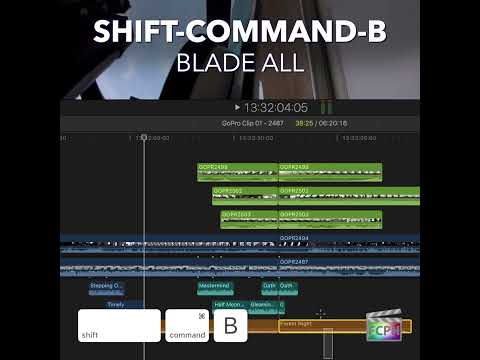
The Shift-Command-B shortcut in Final Cut Pro is used to perform a "Blade All" action. This means that it will cut through all video and audio clips at the current playhead position across all tracks in your timeline. Whether you have a simple two-layer sequence or a complex multi-track timeline, this shortcut ensures that all your clips get sliced at the exact point where your playhead is located, without needing to cut each layer individually.
Why is "Blade All" Useful for Editors?
Final Cut Pro allows for multiple video and audio layers, which means editing can quickly become a layered, intricate process. When you need to make cuts across all of them at once — such as when you're adding a transition, scene change, or audio cue — manually cutting each track is tedious and inefficient.
Instead, the Blade All command allows you to quickly slice through every clip at once, maintaining synchronization across all layers, and ensuring your edits stay aligned.
How to Use the Shift-Command-B Shortcut
Here’s how you can use the Shift-Command-B shortcut effectively in your editing workflow:
- Position the Playhead: First, move your playhead to the point in the timeline where you want to make the cut. This could be the start of a new scene, a transition, or any other moment where you want to split your clips.
- Press Shift-Command-B: Once the playhead is positioned correctly, simply press Shift + Command + B on your keyboard. This will slice through all video and audio tracks at the playhead position, cutting every clip and layer at that exact frame.
- Edit Your Clips: After the cut, each segment becomes an independent clip. Now you can move, trim, delete, or apply effects to each individual segment, all while keeping your timeline in sync across tracks.
When Should You Use "Blade All"?
The Blade All shortcut is especially useful in the following situations:
- Working with Multi-Layer Projects: If you’re working with multiple video and audio tracks, this shortcut ensures you don’t have to manually select each track to make a cut.
- Quick Scene Changes: When a scene change or transition occurs, you might need to cut all your clips at once to create a smooth shift between segments.
- Syncing Audio and Video: If you're working with multiple layers of audio or video and want to ensure everything is cut at the same point (e.g., syncing sound effects with visuals), Blade All helps maintain that synchronicity.
- Fast Workflow: Ultimately, this shortcut is designed for speed. Instead of painstakingly cutting each track individually, Shift-Command-B allows you to make a clean, quick cut across everything in one motion.
Example Scenario: Editing a Multi-Layer Timeline
Imagine you’re editing a scene with several video tracks and multiple layers of audio. You’ve placed the playhead at the point where a scene transition should occur, and you need to cut all tracks at that exact moment.
Without Blade All, you would have to manually go through each track, select the clip, and cut it at the playhead position. This can be time-consuming, especially if you have many layers in your timeline.
With Shift-Command-B, you can make the cut instantly across all tracks. This way, you don’t have to worry about accidentally missing a layer or losing sync between your video and audio. It’s a quick, effective way to ensure your edits are clean and precise.
Conclusion: Streamline Your Editing with "Blade All"
The Shift-Command-B shortcut is a small but powerful tool in your Final Cut Pro arsenal. By allowing you to quickly cut through all tracks at once, it helps streamline your editing workflow, especially when dealing with complex timelines that have multiple video and audio layers. Whether you're working on a short film, a music video, or a podcast, using Blade All can save you time and keep your project flowing smoothly.
Next time you need to make a cut across multiple layers, remember the Shift-Command-B shortcut — your future self will thank you!


Related tutorials
-

How to Deselect All in Final Cut Pro with Shift-Command-A
If you’re an editor using Final Cut Pro , you know how important it is to keep your workspace organized and efficient. Whether you’re working with a large…
-

How to Use the Control-Shift-R Keyboard Shortcut to Render All in Final Cut Pro
If you’re an editor using Final Cut Pro , you know that maintaining smooth playback is essential to your workflow. Whether you’re working with…
-

Mastering the Shift-B Shortcut in Final Cut Pro: Blade Speed for Seamless Edits
Want part of a clip in slow motion and the rest at normal speed, without cutting the clip apart? That's what Shift-B is for. Its official name is Blade…