How to Use the Control-Tab Shortcut to Switch Inspector Tabs in Final Cut Pro
Keyboard shortcut: ControlTab
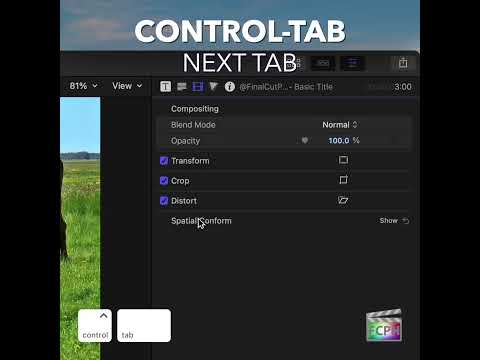
The Inspector is where you adjust almost everything about a clip, and its settings are split across several tabs. Control-Tab lets you move through those tabs without clicking.
What Control-Tab Does
In Final Cut Pro's default command set, Control-Tab is assigned to Next Inspector Tab. Each press moves the Inspector to its next tab. The tabs you see depend on what's selected. A video clip might show Video, Color, Audio and Info, while a title adds its own text and title tabs.
How to Use It
- Select a clip in the Timeline or the Browser.
- If the Inspector isn't showing, press Command-4 to open it.
- Press Control-Tab to move to the next Inspector tab.
- Keep pressing until you reach the settings you need.
Practical Uses
- Quick checks: Jump from the Video tab to the Audio tab to confirm the volume of a clip, then over to Info to check its metadata.
- Working on titles: Move between the text settings and the title's published parameters without hunting for the small tab buttons.
Tips
- The tabs cycle, so if you pass the one you want, keep pressing Control-Tab to come back around.
- In other Mac apps, such as Safari, Control-Tab switches browser tabs. In Final Cut Pro it switches Inspector tabs instead, so it's an easy one to remember.
Control-Tab is a small shortcut, but it keeps your hands on the keyboard while you work through a clip's settings.



Related tutorials
-

Boost Your Final Cut Pro Efficiency with the Control-Shift-Tab Shortcut
The Inspector is where you adjust almost everything about a clip, and it's split into tabs. Control-Shift-Tab runs Previous Inspector Tab : it takes you…
-
Final Cut Pro Shortcut | Control-V | Show and Hide Video Animation
As a Final Cut Pro editor, you're likely aware of keyframes and that they are used for animation. Whether you're adjusting position, scale, opacity, or…
-
Intro to Browser Filters in Final Cut Pro With Control-C Shortcut
As an editor, efficiency is key when it comes to managing complex timelines and projects. Utilize the filters in the Final Cut Pro browser to help locate…